
OSSLab::開放軟體實驗室(Open Source Software Lab) > 硬體研究 > 嵌入式系統與硬體 - Embedded System and Hardware > NextVOD unit Hacking - 網樂通改機 > NextPBX 使用教學 > 郵件通知設定
- You do not have permissions to view this page - please try logging in.
內容表格
- 1. 設定開始
- 2. 其他技巧
- 2.1. 發測試信以確認 msmtp 設定是否正確
- 2.2. 系統日期錯誤會影響發信
NextPBX (v0.7.0+)的分機如果啟用"語音留言信箱 Voicemail",當信箱有新的語音留言時,系統可以自動寄出郵件通知,並將語音留言以附檔方式寄出。
若要使 NextPBX 能成功外寄郵件,必須連接一個 SMTP 外寄郵件伺服器,這通常是貴公司的的郵件伺服器,或者是所屬網路服務供應商的郵件伺服器,假使兩者都沒有,也可以使用 google 的郵件伺服器,不過必須有 gmail 帳號。
以下教學將以 google 的郵件伺服器為例,如果是其他伺服器,請自行修改。
設定開始
使用 telnet 登入 NextPBX
編輯 /root/.msmtprc
######################################################################
# A sample configuration using Gmail
######################################################################

# account name is "gmail".
# You can select this account by using "-a gmail" in your command line.
account       gmail
host          smtp.gmail.com
tls           on
tls_trust_file /root/ssl/ca-certificates.crt
port          587
auth          on
from          yourid@gmail.com
user          yourid@gmail.com
password      yourpass
將 yourid@gmail.com 換成你的 gmail 帳號
將 yourpass 換成你的 gmail 密碼
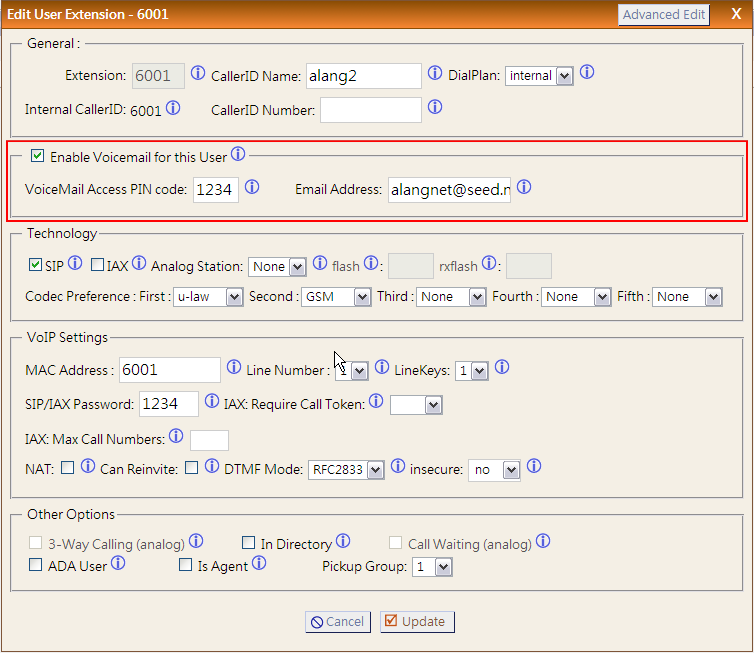
分機啟用 Voicemail
Web-UI > Users > 選擇分機, Edit >
- Enable Voicemail for this user: 勾選
- Email Address: <要收到通知的電子信箱>
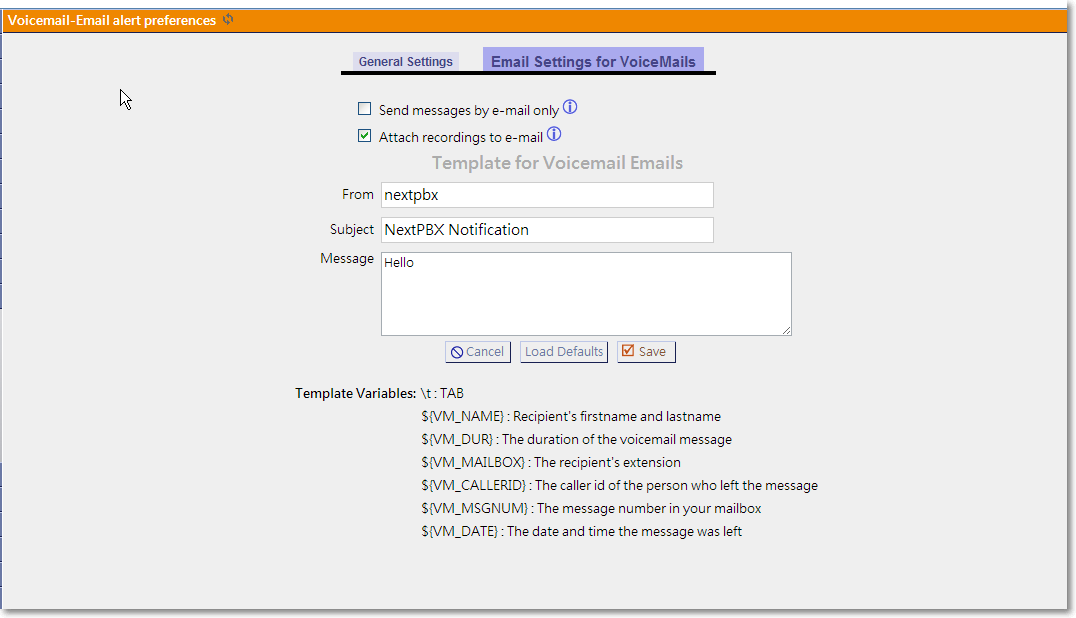
其他設定(非必要)
Web-UI > Voicemail
- From: <寄件者>
- Subject: <主旨>
- Message: <內文>
其他技巧
發測試信以確認 msmtp 設定是否正確
在 Linux console 執行以下指令
# cat <<EOF | msmtp -a gmail your@gmail.com
> Subject: test mail
> Hello
> EOF
系統日期錯誤會影響發信
檢查系統的日期
# date
- Was this page helpful?
- 標籤 (Edit tags)
- 什麼連接到這裡
文件 2

| 文件 | 大小 | 日期 | 附件上傳者 | |||
|---|---|---|---|---|---|---|
| webui-Users_Voicemail-2.png Users > Voicemail | 39.33 KB | 13:56, 5 Jan 2013 | alang | 動作 | |
| webui-Users_Voicemail-3.png Voice Mail | 25.5 KB | 13:59, 5 Jan 2013 | alang | 動作 | |
| Images 2 | ||
|---|---|---|
 Users > Voicemailwebui-Users_Voicemail-2.png |  Voice Mailwebui-Users_Voicemail-3.png | |
您必須 登入 才能發佈評論。
Powered by MindTouch Core